

View alarms

|
"Camera 3 detected motion at around 4:00 PM and sent me an alarm. It looks like a burglary. I want to see what exactly happened and show the video to my security officer." |
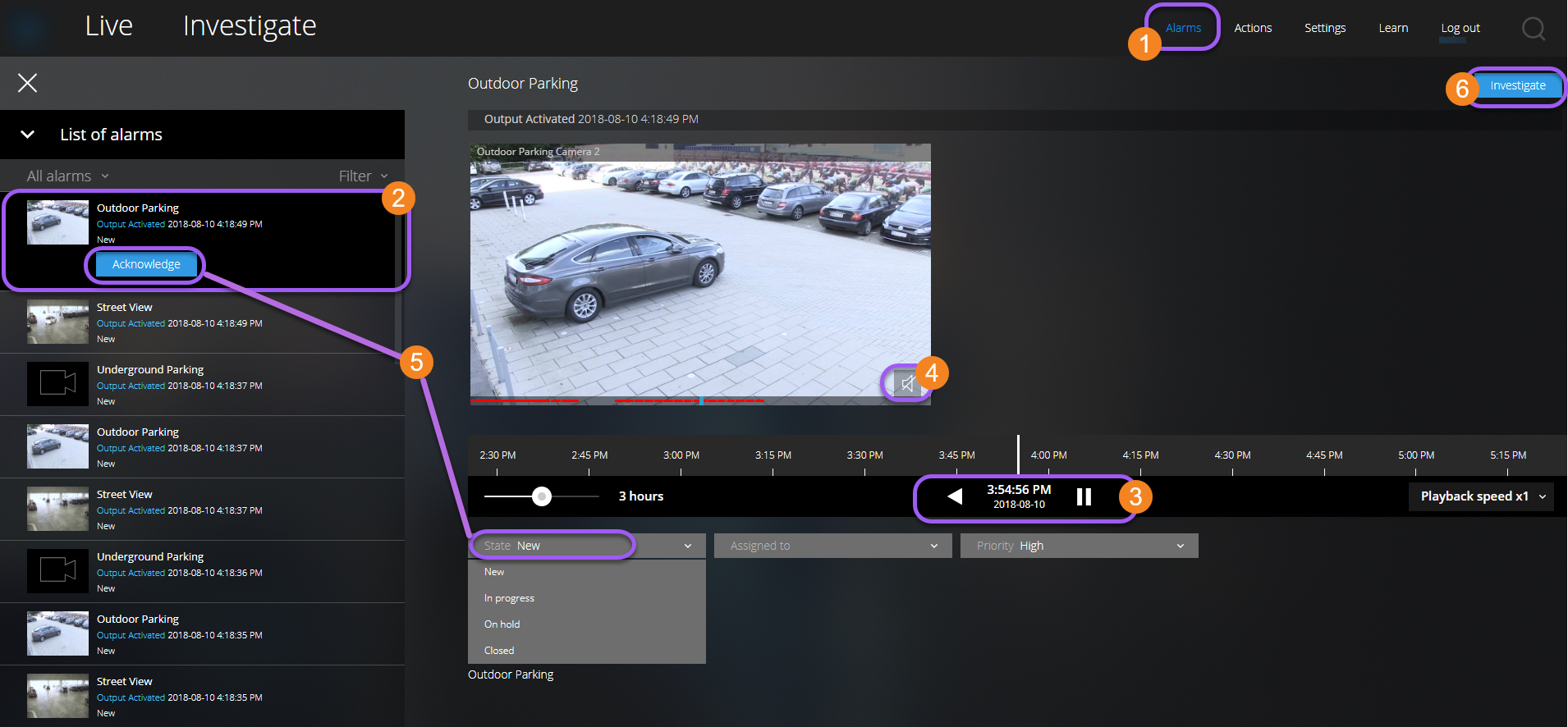
On the Alarms tab  :
:
- Find and click the alarm
 that you want to view video for. From the Filter list, you can filter the alarms by states and priorities.
 - Play the video backward or forward and check when the image that you are seeing was taken
 .
. - Start or stop playing audio for the video playback when you play it forward at normal speed
 (see Playing back audio in video recordings (explained)).
 - Change the state of the alarm by clicking the Acknowledge button or by selecting another alarm state option from the list
 .
. - To save the video for later or share it with others, click Investigate
 .
. - Follow the steps in Prepare video export and download.
What else can trigger alarms?
- A camera stops working
- A pane of glass gets shattered or broken
- A locker gets broken into
- A blacklisted license plate is seen on camera
To view alarms, ask your system administrator to set up alarms and to give you the sufficient user rights.